文章のコピーは書式にも一緒にコピーされる
Windowsパソコンで文字入力をしていると、文字、文章をコピー&ペーストすることが多くあります。この時に、元の書式もコピー&ペーストされてしまい困った(扱い難い)ことありませんか?
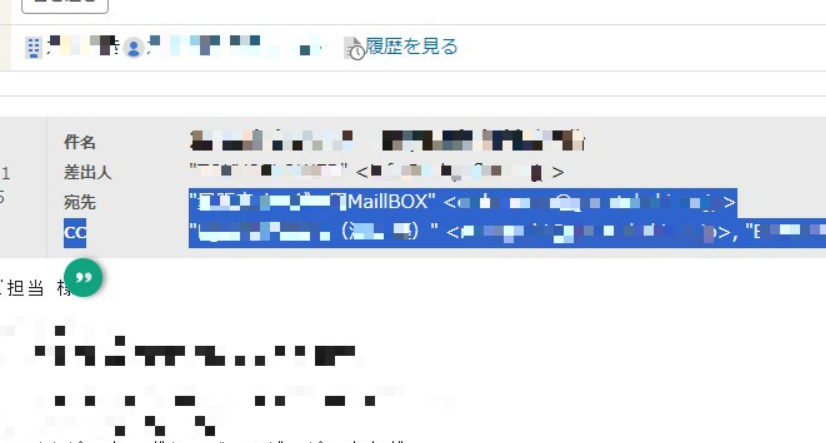
必要な部分を選択してコピーする。
ここまでは普通通り。
貼り付けた時に書式も一緒に…
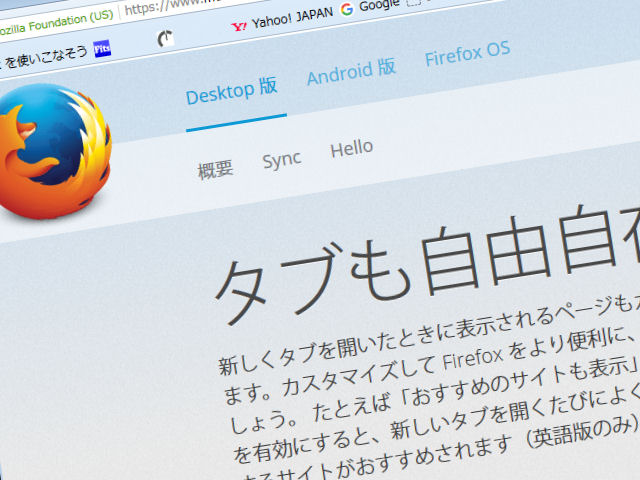
コピーした文章と一緒に書式も張り付いてしまい、元の文章の部分の背景やフォント、強調なども一緒にペーストされてしまいます。
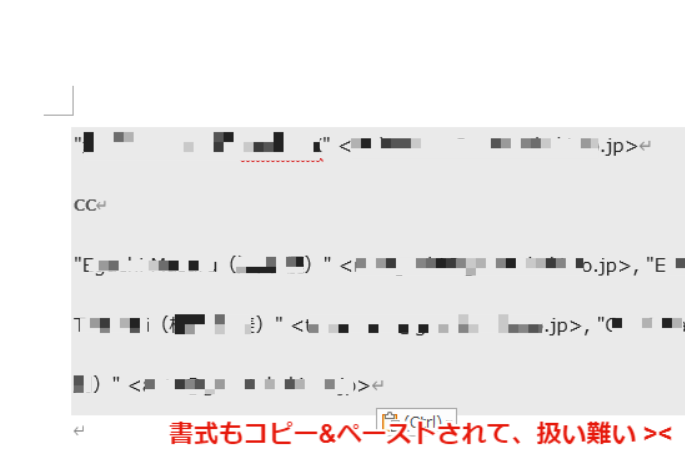
一旦メモ帳に文章を張り付ける
こんな時は一旦メモ帳に必要な文章を貼り付けます。
メモ帳に貼り付けることで、余分な書式情報が削除され、テキスト情報だけになります。
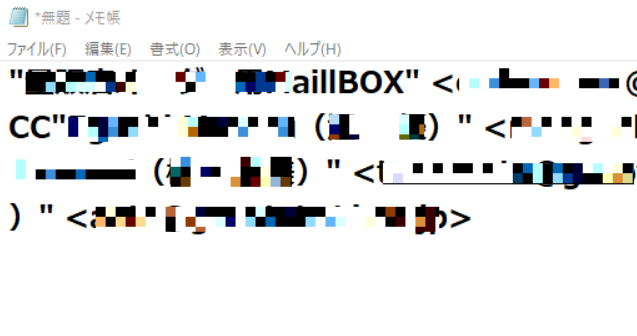
書式情報を取り除いた形で文章だけがペーストできる
メモ帳に貼り付けた文章をもう一度すべて選択(ctrl + A)し、コピー(c) or 切り取り(x) して必要な箇所(wordなど)に貼り付ければ、書式を取り除いてテキスト部分だけを張り付けることができますよ
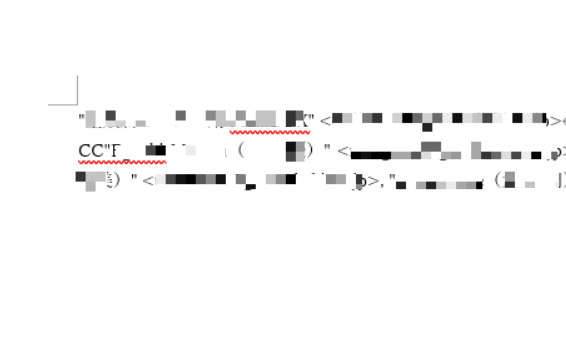
画像だとちょっと判りづらいですが、wordにテキストだけを張り付けた状態です。
最近ではペースト時にテキスト情報だけを張り付けと選択することもできます
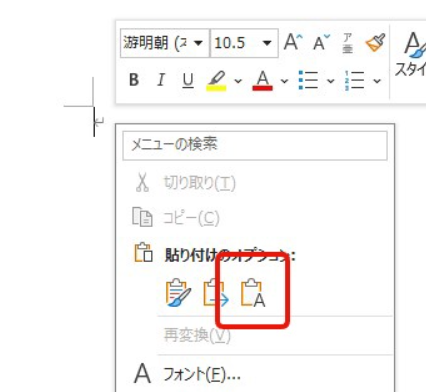
最近のwordでは貼り付ける時にオプションが選択でき、「テキスト情報だけを張り付ける」を選択できるようになっています。
写真のようなオプションが表示されている場合は、「A」のアイコンを選ぶことでテキスト情報だけを張り付けることもできますよ
Solves text formatting problems on Windows PC!
If you are using a Windows PC, formatting may be copied together when copying and pasting text. Copying and pasting without removing this formatting can make your document unnecessarily complex and difficult to edit. However, there are simple ways to deal with this. This article shows you how to remove text formatting and copy and paste on a Windows PC.
1. using Notepad
The simplest way is to copy the text and then paste it into a plain text editor such as Notepad. Notepad produces pure text without any formatting. If you paste text into Notepad, then copy it again and paste it into an application such as Word, you can insert text without worrying about formatting.
2. using shortcut keys
An even more convenient way is to utilise shortcut keys. After copying text, use Shift+Ctrl+V (or Shift+Cmd+V on Mac) to paste the text with the formatting removed. This shortcut works in many text editors and word processors.
3. use the plain text tool
Free tools are also available for Windows PCs to remove formatting and copy and paste text cleanly. For example, the software ‘PureText’ removes formatting when copying text and copies plain text to the clipboard. Download and install this tool to solve formatting problems. 4.
4. make use of browser extensions
If you want to remove formatting and copy and paste text while web browsing, you can make use of browser extensions. Many browsers provide extensions that copy text only. Once these extensions are installed, you can easily remove formatting while browsing.
5. customising shortcut keys
Windows PCs also allow you to customise shortcut keys. Using this feature, you can set up text copy and paste shortcuts that suit your preferences. For example, you can set Ctrl+Shift+C to copy with formatting removed and Ctrl+Shift+V to paste without formatting removed.
Using these methods, you can easily remove and copy and paste text formatting on a Windows PC. This makes it easier to organise documents and create content. You will be able to work more efficiently without having to worry about formatting issues.
Text formatting issues can be a hassle, especially when sharing documents and creating content, but these techniques can help reduce stress and increase productivity. Work smarter by copying and pasting without worrying about formatting. Use your Windows PC more effectively and edit text without stress.